
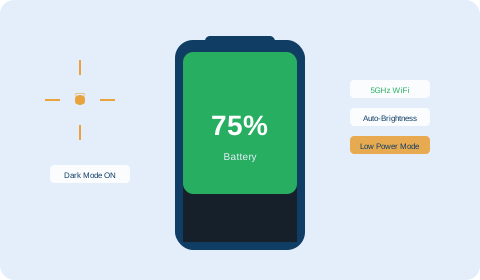
If your phone barely lasts until midday and you didn't always need a power bank, something changed — either the battery degraded, new settings activated, or an app started consuming more than it used to. The good news: most phone battery drain problems are caused by specific, identifiable issues you can fix in under 10 minutes of settings changes.
These 15 tips are ranked roughly by impact. Start at the top — the first five changes alone can add 2–4 hours of real use per charge for most people.
Tips 1–3: Your screen (biggest drain of all)
Tip 1: Reduce screen brightness
The display is the single largest battery consumer on any smartphone. At maximum brightness, the screen can use more power than all other components combined. Keeping brightness at 50–60% in typical indoor conditions saves significant battery — most people set it too high out of habit rather than necessity. Enable Auto-Brightness (iPhone: Settings → Accessibility → Display & Text Size. Android: Settings → Display → Adaptive Brightness) to let the phone match brightness to ambient light automatically.
Tip 2: Enable dark mode on OLED screens
On phones with OLED or AMOLED displays (iPhone X and later, most Samsung Galaxy, Google Pixel, OnePlus), true black pixels are switched completely off. Dark mode with a black theme saves measurable battery — up to 30–40% screen power in some conditions. On LCD-screened phones, dark mode is easier on the eyes but saves very little battery.
Tip 3: Reduce screen timeout and refresh rate
Set your screen to turn off after 30–60 seconds of inactivity rather than 2–5 minutes. Each extra minute of idle screen-on time is wasted power. If your phone has a high refresh rate (90Hz, 120Hz), set it to Adaptive so it only runs at full speed while scrolling, not while displaying a static screen.
Tips 4–6: Background activity
Tip 4: Disable background app refresh for apps you don't need live updates from
Background App Refresh (iPhone: Settings → General → Background App Refresh. Android: Settings → Apps → select app → Battery → restrict background activity) allows apps to update their content while you're not using them. Most apps don't need this — your social media feed will still load when you open the app, just not before. Disable it for all apps except the ones you genuinely need instant updates from (calendar, messaging).
Tip 5: Audit location services — this is the most overlooked drain
Location services is one of the highest-impact battery drains that most people never check. Go to Settings → Privacy → Location Services (iPhone) or Settings → Location (Android) and look for any app set to "Always" location access that doesn't genuinely need it. Delivery apps, fitness trackers and some social apps often request permanent GPS access when "While Using" or "Never" would be more appropriate.
Tip 6: Turn off push email — use fetch instead
Push email means your phone maintains a constant connection to the email server and receives messages the instant they arrive. Fetch email means the phone checks at intervals (every 15, 30, or 60 minutes). Unless you need instant email delivery for work emergencies, switching from Push to Fetch every 30 minutes or hourly saves consistent background battery drain all day.
Tips 7–9: Connectivity settings
Tip 7: Switch 5G to 4G when battery matters
5G consumes more power than 4G, especially in areas with patchy 5G coverage where the phone constantly searches for and reconnects to 5G towers. On days when you need the battery to last, manually switching to 4G LTE (iPhone: Settings → Mobile Data → Voice & Data. Android: Settings → Network & Internet → Mobile network → Preferred network type) can add 1–3 hours of use.
Tip 8: Enable WiFi whenever possible
Counterintuitively, WiFi generally uses less battery than mobile data for the same data transfer task, because WiFi radios are more efficient at moderate distances. At home or in the office, staying on WiFi rather than mobile data saves power throughout the day.
Tip 9: Turn off hotspot and Bluetooth when not in use
Personal hotspot uses significant power to broadcast a WiFi signal. Bluetooth uses minimal power when connected to a device but turn it off if you're not using any accessories and battery is critical.
Tips 10–12: Charging habits that protect long-term battery health
Tip 10: Charge between 20% and 80%
Lithium batteries degrade slightly faster at extreme states of charge — both full (100%) and empty (0%). The ideal charge window for long battery health is 20–80%. Most modern phones have an Optimized Charging feature that holds the charge below 80% until shortly before you typically wake up — enable this setting if it's available.
Tip 11: Avoid charging on surfaces that trap heat
Lithium batteries degrade faster when they charge hot. Charging under a pillow, inside a case, or in direct sunlight raises temperatures during charging. Remove your phone case during charging if it gets noticeably warm, and keep the phone on a hard flat surface with ventilation.
Tip 12: Don't use your phone heavily while charging
Using your phone at full brightness for gaming or video streaming while charging generates significant heat, particularly with fast charging. For important charging sessions where you need maximum battery quickly, put the phone face-down and leave it alone.
Tips 13–15: Apps and software
Tip 13: Check battery usage by app
Go to Settings → Battery on both iPhone and Android to see which apps consumed the most battery in the last 24 hours or 7 days. Look specifically for apps showing high background battery use — these are draining your battery while you're not using them. Restrict background activity for any offenders.
Tip 14: Keep your operating system updated
OS updates routinely include battery efficiency improvements and fix bugs in previous versions that caused excessive drain. An outdated OS on an older phone is frequently the cause of sudden battery problems that appeared after the last update cycle.
Tip 15: Use Low Power Mode proactively, not reactively
Most people only enable Low Power Mode when the battery warning appears at 20%. Enabling it at 50% when you know you won't be near a charger for several hours is far more effective — it extends the remaining charge duration significantly rather than trying to squeeze out the last few percent at the end.
When settings aren't enough
If you've applied the tips above and still run short on battery during your day, a power bank is the most reliable solution for on-the-go charging. See our complete guide on how to choose the right power bank for your phone — including exactly how much capacity you need and which fast-charging standards to look for.
🛡 Free Scam Protection Guide
How scammers steal your money, fake products and card details — free PDF, no signup needed.
Download Free Guide (PDF)Frequently asked questions
The screen at high brightness is the biggest drain, followed by mobile data in weak signal areas, GPS/location services, background app refresh and push email. Addressing these five is enough to noticeably extend battery life for most people.
Yes on OLED/AMOLED screens — true black pixels are switched off, saving significant power. On LCD screens, dark mode saves very little battery because the backlight stays on at full brightness regardless of screen content.
Consistently charging to 100% slightly accelerates long-term battery degradation. The ideal range is 20–80%. Enable Optimized Charging on iPhone or Adaptive Charging on Android to have the phone manage this automatically.
Generally no. Reopening a force-closed app uses more energy than if it stayed in memory. Only close apps that are actively using GPS or background processing when you don't need them.
Yes, noticeably. Switching to 4G mode on days where battery life matters more than speed can add 1–3 hours of use.
iPhone: Settings → Battery → scroll down for per-app usage. Android: Settings → Battery → Battery usage. Look for apps with high background usage percentages.
No. Full discharge shortens lithium battery lifespan over time. Keep your battery between 20% and 80% for best long-term health.
iPhone: Settings → Battery → Battery Health → below 80% capacity indicates significant degradation. On Android, check settings or use manufacturer diagnostic tools. If the phone can't last a typical day after implementing these tips, replacement is worth considering.
Yes, dramatically — it disables all radio communications (cellular, WiFi, Bluetooth, GPS) and cuts battery drain to a fraction of normal. Useful in emergencies when you need to preserve remaining battery for an important call later.
Yes significantly. Set your phone to Adaptive refresh rate mode so it only runs at 120Hz while scrolling and drops to 60Hz on static screens.
Questions & comments
Have a question? Leave a comment and we reply within one business day.
The location services tip is the one I needed. Found three apps set to Always location access I had completely forgotten about. Battery noticeably better since turning them off.
Didn't know about the 20-80% charging advice. Will enable optimized charging now. Also didn't know closing apps can actually waste more battery — counterintuitive!