
If your WiFi is slow, there is always a specific reason. Unlike many tech problems that require replacing hardware to solve, most home WiFi speed issues are caused by configuration, positioning or congestion problems that cost nothing to fix. This guide works through the most common causes in order of how frequently they actually cause the problem.
Try each step in sequence before moving to the next — many people fix their WiFi after step 2 or 3 and never need to go further.
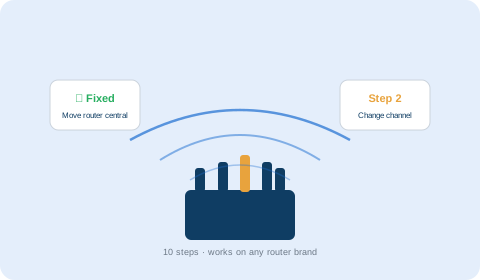
Step 1: Move your router — this fixes more problems than anything else
Router position is the single most common cause of slow home WiFi, and the most frequently overlooked. Routers are often placed wherever the ISP technician installed them — usually next to the entrance cable point, which may be in a corner, inside a cupboard, or behind a TV.
Where routers should NOT be
- Inside media cabinets or entertainment units (metal enclosures block signal dramatically)
- Behind a TV (TVs reflect and absorb RF signal)
- On the floor (signal spreads outward at floor level, not upward to where devices are)
- In a corner (signal radiates from the router; a corner means half the signal goes into walls)
- Near a microwave, cordless phone base or baby monitor (all interfere with 2.4GHz)
Where routers should be
Central to the space they need to cover, elevated (table or shelf height), in open air with nothing immediately surrounding them, and roughly equidistant from the devices that need the strongest signal.
Moving a router from a corner cabinet to an open shelf in the center of the home routinely doubles signal strength at the devices that matter — test this before spending money on any additional hardware.
Step 2: Change your WiFi channel
The 2.4GHz WiFi band has limited channel space. If all your neighbors' routers are using the same channel as yours, every transmission causes interference. Think of it as a room full of people all talking on the same radio frequency — everyone has to repeat themselves more, slowing everything down.
How to fix it
- Download a free WiFi analyzer app on your phone (WiFi Analyzer on Android, Network Analyzer on iPhone)
- Scan nearby networks and see which 2.4GHz channels (1, 6 or 11 are the non-overlapping ones) have the fewest competing networks
- Log into your router admin panel (usually 192.168.1.1 or 192.168.0.1 in a browser) and manually set the 2.4GHz channel to the least-congested option
Set the 5GHz band to "Auto" since 5GHz channels are wider and less likely to conflict.
Step 3: Use the right frequency band for each device
Most modern routers broadcast both 2.4GHz and 5GHz simultaneously. Many also "combine" them into a single network name, letting the router decide which band each device uses. This is convenient but can result in fast devices being held back by the slower 2.4GHz band.
- 5GHz: Use for laptops, phones, smart TVs and streaming devices close to or within line-of-sight of the router. Significantly faster, less congested.
- 2.4GHz: Use for devices far from the router, or devices that need to go through multiple walls. Better range and wall penetration at the cost of speed.
If your router combines both bands, consider separating them into two distinct network names so you can manually assign devices to the appropriate band.
Step 4: Audit connected devices — too many is a real problem
A modern home can easily have 40–60 WiFi-connected devices: phones, tablets, laptops, smart TVs, streaming sticks, game consoles, security cameras, smart speakers, smart bulbs, thermostats and more. Most consumer routers perform well with 20–30 devices but degrade noticeably above this.
Log into your router admin panel and view the connected devices list. Remove any devices you no longer use, and check whether guest devices from visitors are still connected. Reduce the load by connecting fixed devices (desktop computers, smart TVs) with an Ethernet cable rather than WiFi where possible.
Step 5: Plug fixed devices into Ethernet
Every device that moves from WiFi to a wired Ethernet connection removes itself from the WiFi congestion pool and typically gets a significantly faster and more stable connection. Smart TVs, desktop computers, games consoles and streaming boxes are all prime candidates — they're stationary, and Ethernet is always better for high-bandwidth activities like 4K streaming and gaming.
Step 6: Restart the router properly (and schedule it regularly)
A simple power cycle — unplug the router, wait 30 seconds, plug back in — clears the router's memory, refreshes its channel detection and resolves some temporary connection states. Many routers also allow you to schedule an automatic nightly restart in their admin settings, which prevents the gradual performance degradation many people notice over weeks of continuous uptime.
Step 7: Update your router's firmware
Router manufacturers release firmware updates that fix bugs (including performance bugs), improve security and sometimes add features. Many routers don't update automatically. Log into your router's admin panel, find the firmware update section (usually under Administration or Advanced) and check for updates.
Step 8: Check whether unauthorized devices are using your bandwidth
A slow but overlooked cause of WiFi problems: neighbors or nearby people using your WiFi without authorization. If your password is old, simple, or was shared with guests years ago, check the connected device list in your router admin panel for unfamiliar devices. Change your WiFi password to something strong (12+ characters, mixed type) and update each of your devices.
Step 9: If you need more coverage — wired access point, not a WiFi extender
WiFi range extenders (repeaters) seem like an obvious solution for dead zones but have a fundamental limitation: they receive WiFi from the router and retransmit it on the same frequency band, which halves the available bandwidth for devices connected to the extender. The result is coverage in the room but slow speeds.
A wired access point connected to your router via an Ethernet cable is significantly more effective: it receives the full connection via cable and rebroadcasts WiFi at full router speed, with no bandwidth halving. It's more work to install but produces a dramatically better result for multi-floor homes and properties with thick walls. See our article on structured cabling vs WiFi for a full explanation of why wired backbones outperform mesh systems in dense-wall environments.
Step 10: When to actually upgrade your router
After working through steps 1–9, if speed is still poor, hardware age may be the issue. Routers older than 5–6 years predate WiFi 6 (802.11ax), which offers significantly better performance in homes with many connected devices. Signs your router may genuinely need replacement:
- More than 5–6 years old
- Doesn't support 5GHz at all (2.4GHz only routers are now significantly outdated)
- Runs hot constantly
- Performance has progressively worsened despite restarts and setting changes
Before replacing a router, consider whether the real solution is additional wired access points rather than a more powerful central router — especially in multi-floor UAE villas with concrete construction. If you're in Abu Dhabi, our WiFi solutions service includes a free coverage survey that identifies exactly where dead zones occur before recommending or installing any hardware.
🛡 Free Scam Protection Guide
How scammers steal your money, fake products and card details — free PDF, no signup needed.
Download Free Guide (PDF)Frequently asked questions
Usually because of local issues — router position, channel congestion, too many connected devices or an old router — rather than your actual internet plan speed. Work through the steps in this guide before concluding your plan is too slow.
Yes, temporarily. It clears memory and refreshes channel selection. If you need to restart regularly to maintain speed, there's an underlying issue — usually overheating, channel congestion or too many devices.
2.4GHz travels further through walls but is slower and more congested. 5GHz is much faster but has shorter range. Use 5GHz for devices close to the router and 2.4GHz for devices further away.
Most consumer routers handle 20–30 devices before degrading. A modern home with cameras, smart devices, phones, TVs and computers can easily exceed this. Check your router's spec sheet.
It extends coverage but typically halves bandwidth for connected devices. A wired access point connected to the router via Ethernet is significantly more effective for persistent dead zones.
Different WiFi adapters have different capabilities. Check whether your laptop is on a power-saving mode that limits WiFi speed, and whether it's connected to 2.4GHz instead of 5GHz.
Use a free WiFi analyzer app to see which channels nearby networks use. Set your 2.4GHz to channels 1, 6 or 11 — whichever has the fewest competitors.
Mesh works well in open-plan homes. For multi-floor homes with concrete walls (typical in UAE), wired access points outperform mesh because they don't lose bandwidth relaying wirelessly through dense walls.
If it's more than 5–6 years old, only supports 2.4GHz, runs hot constantly, or performance has progressively worsened despite the fixes in this guide.
Move the router to a central, elevated, open position and change the WiFi channel to the least congested option. These two changes fix the majority of home WiFi speed problems at zero cost.
Questions & comments
Have a question? Leave a comment and we reply within one business day.
Step 1 fixed it completely. Router was inside a media cabinet. Moved it on top and the speed literally doubled in my bedroom. Can't believe that's all it was.
Cabinet placement is the most common fixable cause we see — great that it worked! If you ever want proper whole-villa coverage with wired access points, we do free WiFi surveys across Abu Dhabi.